Home / Guides / Batch PDF processing
How to batch unlock or protect PDF files
Published September 3, 2026 · About 5 minutes
Batch mode applies one unlock or protection setup to the top-level PDFs in an input folder. It is designed for a group of files that share the same password requirements.
Before you start
- Put the PDFs you want to process directly in one input folder. Files inside nested subfolders are not included.
- For batch unlock, group together PDFs that use the same open password. Files with different passwords should be processed in separate batches.
- Choose a destination with enough storage for the new output files. The source PDFs remain in place.
Set up the batch
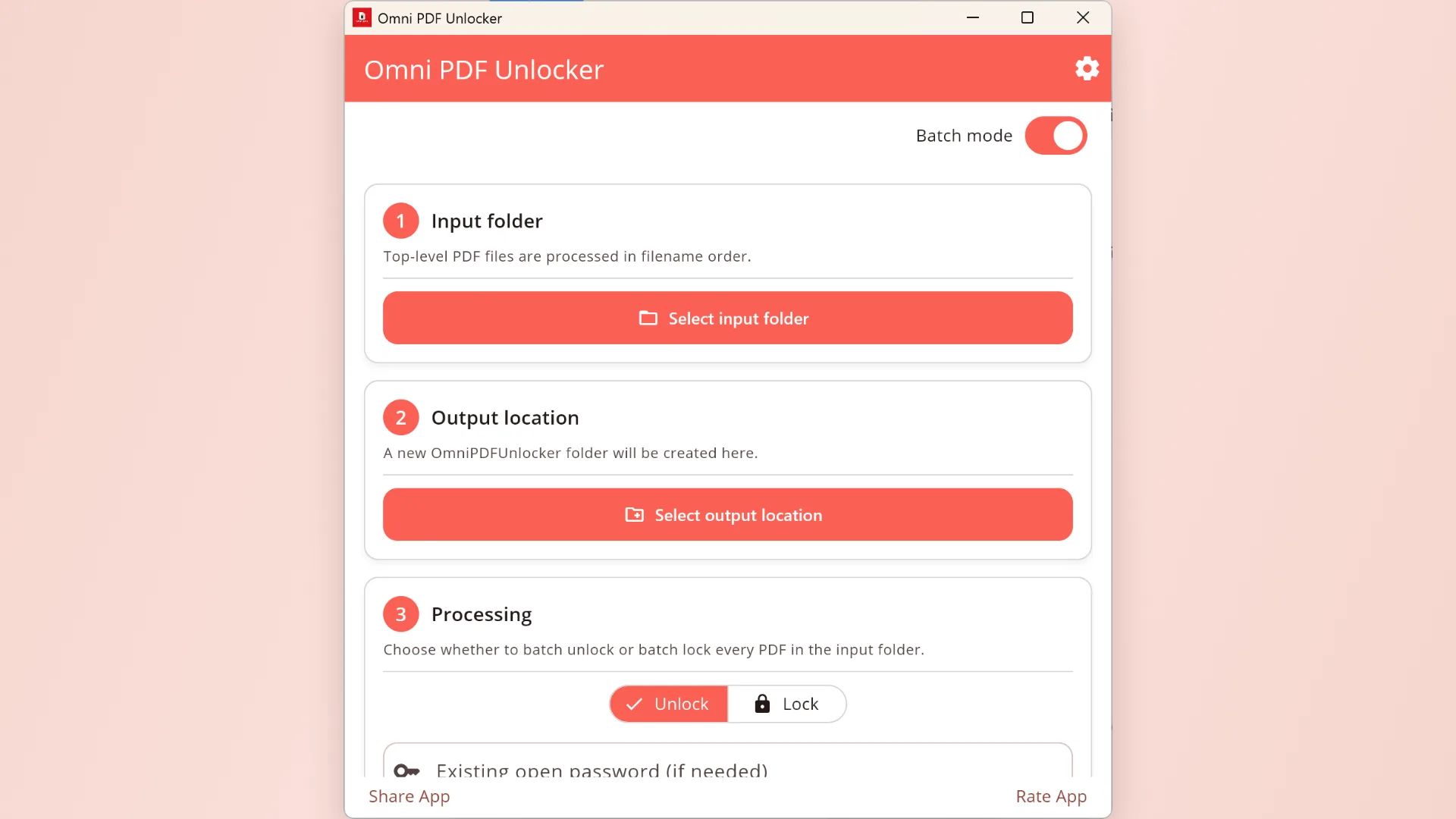
- Turn on Batch mode. The page changes from the single-file workflow to the folder workflow.
- Select the input folder. The app counts supported top-level PDF files and processes them in case-insensitive filename order.
- Select the output location. The app creates a new
OmniPDFUnlockerfolder there. If that name already exists, a numbered name is used instead. - Choose Unlock or Lock. Unlock accepts one existing open password for the batch when needed. Lock applies the chosen passwords and permissions to every output PDF.
- Start processing. Review progress and the final result summary before opening the output folder.
What happens when one file fails?
Each PDF is processed separately. If one file has the wrong password, is damaged, or cannot be written, the batch records that error and continues with the remaining files. This prevents one problematic document from discarding successful results.
If you cancel, the current workflow stops rather than waiting for an unrelated save or share action. Files already completed remain in the output folder.
Android file access
Android may require file-access permission before a folder batch can run. Grant it from the first batch card, return to the app, and then continue with the input-folder step. The permission card remains visible so the workflow does not shift under your next tap.
Choosing the right grouping
| Files in the group | Recommended workflow |
|---|---|
| All open with the same password | Run one unlock batch and enter that shared source password. |
| Use different open passwords | Split them into folders by password, then process each folder separately. |
| Open normally but have restrictions | Run an unlock batch without an open password, if you are authorized to remove the restrictions. |
| Need the same new protection | Run one lock batch with the intended open password, owner password, and permissions. |