How to protect PDF opening, printing, and editing
Published September 3, 2026 · About 5 minutes
Choose whether recipients need a password to view the PDF, whether they may print it, and whether they may modify its contents.
Choose the controls you need
| Goal | Enable in Protection settings | Password entered when locking |
|---|---|---|
| Only recipients with a password can view the PDF | Require open password | Open password |
| Allow viewing but limit document changes | Prevent modification | Owner password |
| Allow viewing but limit printing | Prevent printing | Owner password |
| Control both access and permissions | Require open password plus either or both permission switches | Open password and owner password |
Protect one PDF
- Open Tools, then Protection settings. Turn on at least one option: Prevent modification, Prevent printing, or Require open password. Changes are saved as you make them.
- Return to the home screen and select a PDF. If the source already requires an open password, enter it so the app can read the document.
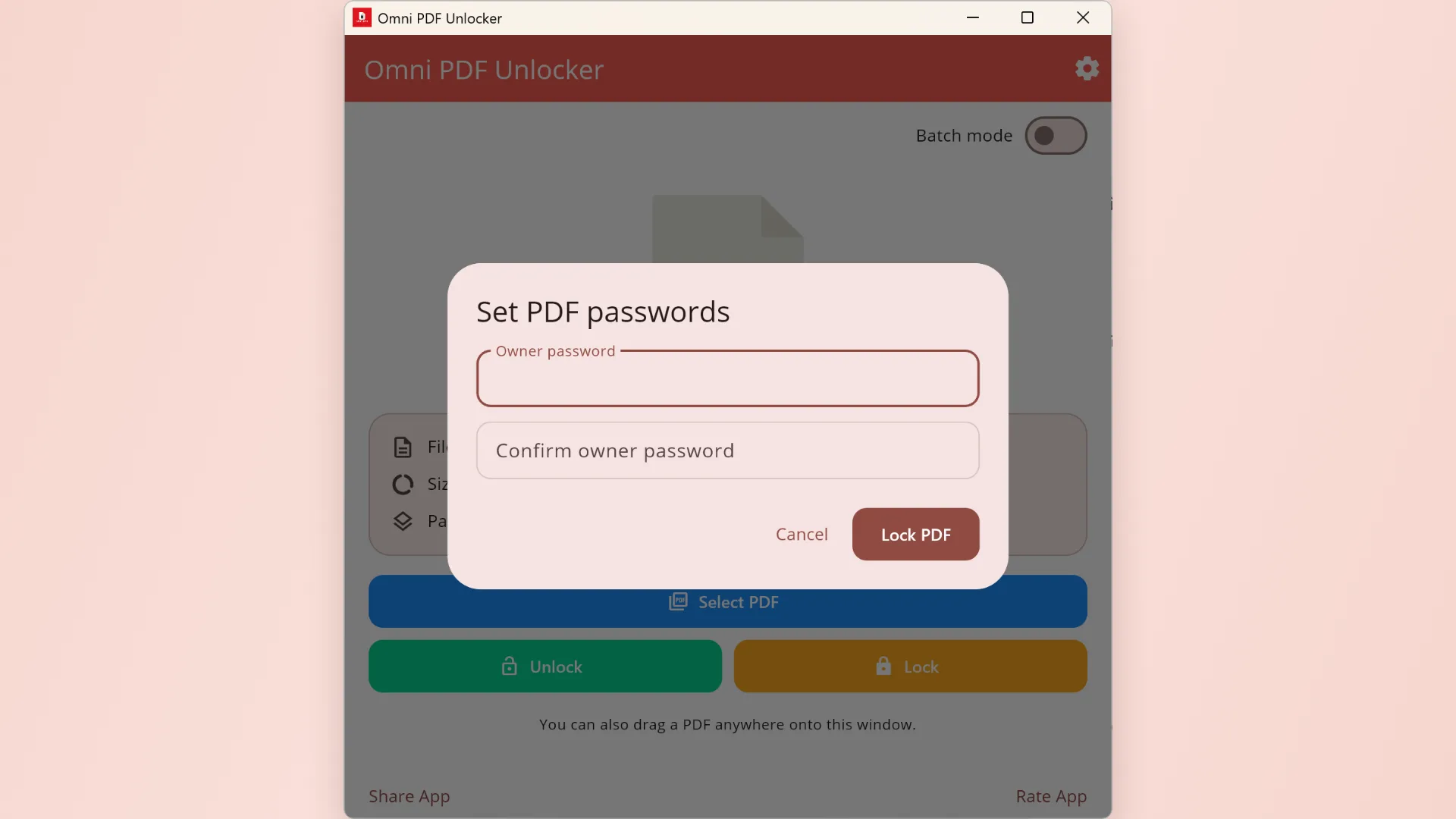
- Choose Lock. Enter and confirm the new open password, owner password, or both, according to the settings you enabled.
- Select Lock PDF, then save or share the result. The protected result is written as a new PDF; the source remains unchanged.
Password recommendations
- Use a long password that is difficult to guess and is not reused from an important account.
- When using both types, keep the open and owner passwords distinct so recipients do not automatically receive the permissions credential.
- Share the open password through a separate channel from the PDF when the document is sensitive.
- Store the owner password safely. Chang Studio does not receive passwords and cannot recover one that you forget.
Know the limit of permissions. An open password controls access through PDF encryption. Printing and editing restrictions are permissions interpreted by compatible readers; they are useful controls, but not a replacement for deciding carefully who receives the file.
Protect a folder of PDFs
Batch mode can apply the same new open password, owner password, and permissions to every top-level PDF in an input folder. Use it only when the whole group should receive the same protection.