Home / Guides / Remove a PDF password
How to remove a PDF password on iPhone, Android, Mac, or Windows
Published September 3, 2026 · About 4 minutes
Use this workflow for a PDF you own or are authorized to modify. Omni PDF Unlocker writes a new, unencrypted output file and leaves the source in place.
Remove the password in four steps
- Open Omni PDF Unlocker and select the PDF. Use Select PDF and choose the source document from the system file picker.
- Choose Unlock. The app inspects the selected document and starts the unlock workflow.
- Enter the existing open password if asked. This is the password that lets you view the original PDF. A permissions-only PDF may not show this prompt.
- Save or share the output. Choose the destination offered by your platform. The result is a new PDF without the source encryption.
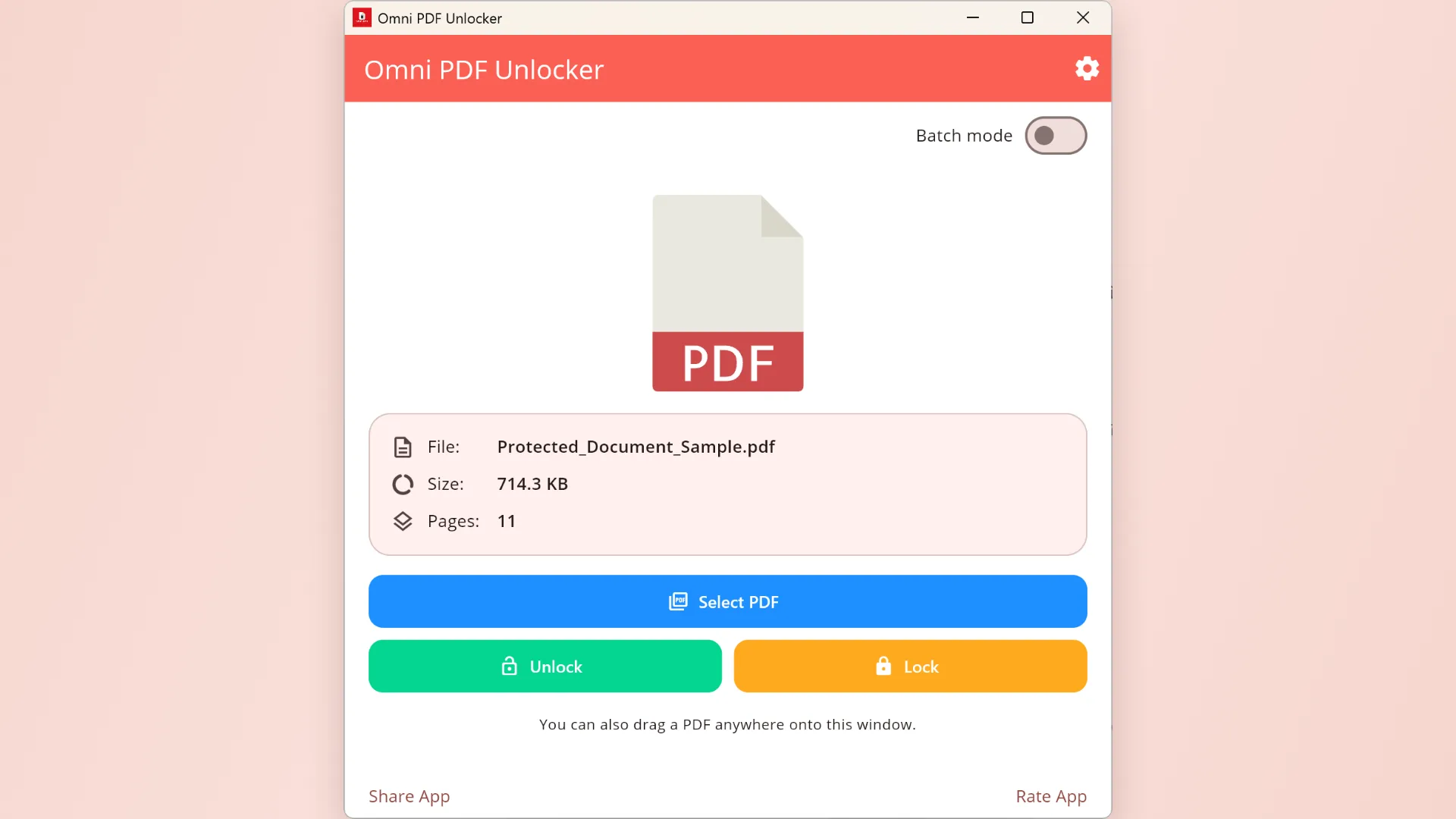
What happens to the original?
The original PDF is not overwritten. The app reads it and writes a separate output document, so you can verify the result before deciding whether to keep the protected source.
If the password is rejected
- Check for capitalization, spaces, and keyboard-layout differences.
- Confirm you are using the password required to open the PDF, not an unrelated website or account password.
- Try opening the source in a PDF reader with the same password to confirm the file itself is readable.
- If you do not know an open password, request it from the document owner. Omni PDF Unlocker does not recover or guess unknown passwords.
Unlock multiple PDFs
Batch mode can process the top-level PDF files in a folder when they use the same source password or do not require one. If files use different open passwords, place them into separate groups and process each group with the matching password.
Read the batch-processing guide.
Why a PDF can open but still be “locked”
PDF supports separate controls for opening the document and restricting actions after it opens. A file can therefore be readable while still blocking printing, copying, or editing. See PDF open password vs. permissions password for the full distinction.